
PC Games Guide: How to Choose, Buy, and Play on PC
Choose PC games that fit your hardware and play style, compare stores and buying options, prepare your setup, and avoid common pitfalls.

A good PC games guide starts with three checks: choose games that suit your interests, confirm your computer can run them, and compare where and how to buy them. Then prepare your controls, storage, and graphics settings before play. These steps help you avoid incompatible purchases and make PC gaming easier to enjoy.
PC gaming gives you choices that consoles often handle for you, including storefronts, graphics settings, input devices, and upgrade paths. That flexibility can be useful, but it also means checking details before you install or buy. A little preparation helps you spend less time troubleshooting and more time playing.
Use the checklist below to understand PC gaming, check your system, compare purchasing options, and see how independent games reach players. The later guide headings cover common pitfalls and practical playing tips. Keep your own priorities in view: the right game and setup depend on what you enjoy and the computer you have.
- Choose games based on your interests, then check system requirements before buying.
- Compare stores, account terms, refund rules, and edition contents before checkout.
- Check storage, controls, and settings to make installation and play smoother.
- Use demos, gameplay footage, and recent player feedback to assess unfamiliar indie games.
What Makes PC Gaming Different
Flexible Controls and Settings
PC gaming lets you choose how a game looks and feels, from keyboard and mouse controls to a connected controller. Many games also offer graphics options such as resolution, shadows, and frame rate limits. Start with the default settings, then change one option at a time so you can see what improves play on your machine.
A keyboard and mouse often suit strategy games, shooters, and titles with many menus, while a controller can feel more natural for platformers or racing games. Some games support both, and others are designed mainly around one input method. Check the store page or game settings before buying if your preferred controls matter.
The range of settings can help a game run on different computers, but more options do not guarantee better performance. Lowering demanding effects may make play smoother, while increasing resolution can sharpen the image at a cost to frame rate. Adjust for the experience you want rather than copying another player's settings.
A Library Across Devices
A PC game library can bring together titles bought from different digital stores, alongside games installed from other sources. That means you may launch games through separate apps and manage updates in more than one place. Keep track of where each game was purchased, because account access and library features can vary by store.
PC is also an open hardware platform, so players can use different computers, monitors, headsets, and controllers. A desktop can be upgraded component by component, while a laptop offers a portable setup with fewer upgrade choices. Decide whether portability, upgrade options, or a simple all-in-one machine matters most to you.
Mods, community-made changes to games, are another part of PC play for titles that support them. They can add features or adjust existing content, but installing them may require extra steps and can affect compatibility. Read the game's own guidance and use trusted sources, especially when a mod changes files or depends on other mods.
Check Your PC Before Choosing a Game
Read the System Requirements
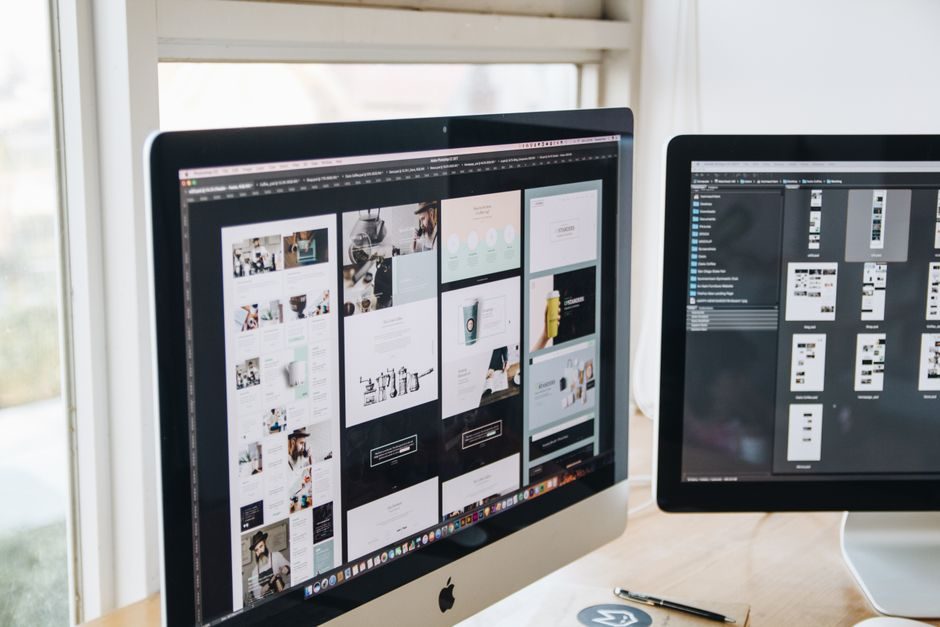
Compare a game's minimum and recommended system requirements with your computer before purchasing. Minimum requirements indicate the basic hardware the publisher says is needed to run the game, while recommended requirements point toward a stronger experience. Check the operating system, processor, graphics hardware, memory, and available storage rather than relying on one component alone.
On Windows, you can find key details through system settings and the Task Manager performance view; other operating systems provide their own system information tools. If you are unsure which graphics chip or processor you have, search the exact model name in your device information. Match that model to the requirements instead of guessing from the computer's age.
Requirements are a guide, not a promise that every machine will perform identically. Background apps, cooling, resolution, and driver support can affect how a game runs. If your hardware sits near the stated minimum, look for gameplay footage or player reports from comparable systems and check the store's refund terms before buying.
- Check your operating system version.
- Compare processor and graphics hardware.
- Confirm memory and free storage.
- Review the game's stated requirements.
Plan Storage and Updates
Check the game's listed storage requirement and leave additional free space for updates, saved files, and temporary installation data. A drive that is nearly full can make installing or updating games inconvenient. If space is tight, remove games you no longer play or choose another suitable drive before starting a large download.
An SSD can shorten loading times compared with a traditional hard drive, though the result depends on the game and the rest of your system. If a game specifies a particular storage type, treat that as part of its requirements. For laptops, confirm which drives can be upgraded before planning to add more capacity.
Keep your graphics drivers and operating system supported and up to date, but avoid installing unfamiliar driver packages from random sites. Use the update tools provided by your operating system or hardware maker. After a major update, restart the computer and test the game before changing several settings at once.
Compare PC Game Stores and Buying Options
Choose a Store That Fits
Compare PC game stores by the games they carry, their account requirements, refund rules, and the features you will actually use. A storefront may offer cloud saves, community features, or a built-in launcher, but those details differ between platforms and titles. Check the game's store page for supported operating systems and any account or launcher requirements.
- Buying without checking the operating system or launcher; confirm both on the product page.
- Assuming every store has identical refund terms; read the seller's policy before checkout.
- Choosing a key without checking its region or edition; verify both match your account and game.
Some games are sold through a publisher's own store or launcher, while others appear across several storefronts. Buying from a store you already use can keep your library in one place, but a different seller may have features that suit you better. Make sure you understand which account owns the game and how you will access it later.
Look at the purchase terms before checkout, particularly the refund policy and whether a key is being sold by an authorized retailer. A low price alone does not tell you how support, activation, or refunds work. If you buy a game key, confirm the platform, region, and edition match your account and intended use.
| Option | What to check | Best fit |
|---|---|---|
| Digital storefront | Refund terms and launcher | Keeping purchases in a library |
| Publisher launcher | Account and access requirements | Games tied to one publisher |
| Authorized key retailer | Region, edition, and activation | A specific listed game key |
| Bundle or expanded edition | Included base game and extras | Players wanting listed add-ons |
Compare Editions and Ownership
Before buying, compare the standard edition with any bundles or expanded editions and identify what each actually includes. Extra content might be cosmetic items, downloadable missions, or a soundtrack rather than the full base game. Read the itemized description so you know whether a bundle includes the game itself or only add-ons.
Digital purchases usually attach a license to an account, so access depends on that account and the store's terms. This is different from owning a physical disc that can be lent or resold, although PC discs are less common for current releases. Protect your account credentials and keep access to its recovery email.
If a game supports cross-play or cross-save, check the specific platform combinations before assuming your progress or multiplayer access will carry over. These features can vary by title, account, and store. Consider whether you plan to play with friends on another platform, and confirm compatibility before making that a reason to buy.
Independent games can reach PC players through storefront recommendations, creator coverage, community discussion, and public demos.
How Indie Games Reach PC Players
Discovery Beyond Big Releases
Independent games can reach PC players through storefront recommendations, creator coverage, community discussion, and public demos. A small studio may have fewer marketing resources than a major publisher, so clear store descriptions and visible gameplay help players judge what a game offers. Wishlists and demos also let interested players keep track of a title before release.
When exploring an unfamiliar game, look beyond its capsule image and read the description, system requirements, and recent player feedback. A trailer can show the art style, but gameplay footage offers a better sense of controls and pacing. If a demo is available, use it to check performance and whether the core idea appeals to you.
Readers curious about how independent games gain visibility may find this overview of Seo Services useful as background on online discovery. For a player, the practical takeaway is to judge a game's store page by how clearly it explains its mechanics, requirements, and current development status. Those details help distinguish a title worth following from one that simply caught your eye.
Follow Development Carefully
An early access release lets players buy and play a game while development continues, rather than after a finished launch. Features, performance, and content may change, so read the developer's description of what is playable now and what remains planned. Treat a roadmap as an intention, not a guarantee that every listed feature will arrive.
Player reviews can reveal how a game performs on different hardware, but look for comments that describe the system and the date of the experience. A recent update may have changed stability or features since older reviews were written. Combine those reports with the game's update notes and stated requirements instead of relying on a single reaction.
Studios may use public demos, playtests, or community channels to gather feedback and build interest. Each option gives players a different level of access, and participation is not a promise of a particular final game. Follow the developer's official channels for release details, and avoid sharing account or payment information in unofficial messages.
Set Up a Game for Comfortable Play
Tune Graphics and Controls
Start with a game's recommended settings, then adjust one option at a time while playing a demanding scene. Lowering shadows or reflections can improve smoothness without making the whole image look noticeably worse. If the game offers a frame-rate limit, try matching it to your display's refresh rate for steadier performance and less unnecessary hardware work.
- A stable frame rate often feels better than maximum visual effects.
- Test control changes before a challenging mission.
- Keep a known-good settings preset for easy recovery.
Choose a resolution that looks clear on your monitor, but do not assume the highest setting is always best. If performance dips, reduce demanding effects before dropping resolution, since a softer image can be more distracting than simpler shadows. Save a working preset when the game allows it, so you can return to a stable setup after experimenting.
Set controls around the actions you use most, not just the default layout. Rebind frequently used abilities to comfortable keys, and check that movement, interaction, and menus do not compete for the same inputs. For a controller, test sensitivity and vibration in a safe area before starting a difficult encounter or online match.
- Adjust one graphics setting at a time.
- Test changes in a demanding scene.
- Rebind awkward or conflicting controls.
- Save a stable preset when available.
Make Long Sessions Easier
Check your display's brightness and room lighting before changing a game's color settings. A bright screen in a dark room can cause fatigue, while low brightness may hide details in shadowed scenes. If the game includes subtitles, adjust their size and background so dialogue remains readable without covering important action.
Use the game's accessibility options to tailor play, even if you do not normally think of them as accessibility tools. Remappable controls, color filters, aim assistance, and adjustable text can make mechanics clearer or reduce strain. Try the options that address a specific difficulty, then keep only the changes that improve your experience.
Plan brief breaks around natural stopping points, such as a completed mission or a save point. Before a longer session, check that your chair, keyboard, and mouse are positioned comfortably, and keep drinks away from electronics. These small preparations help you focus on the game rather than correcting discomfort halfway through a match.
Find Communities Around Online PC Games
Choose Welcoming Play Spaces
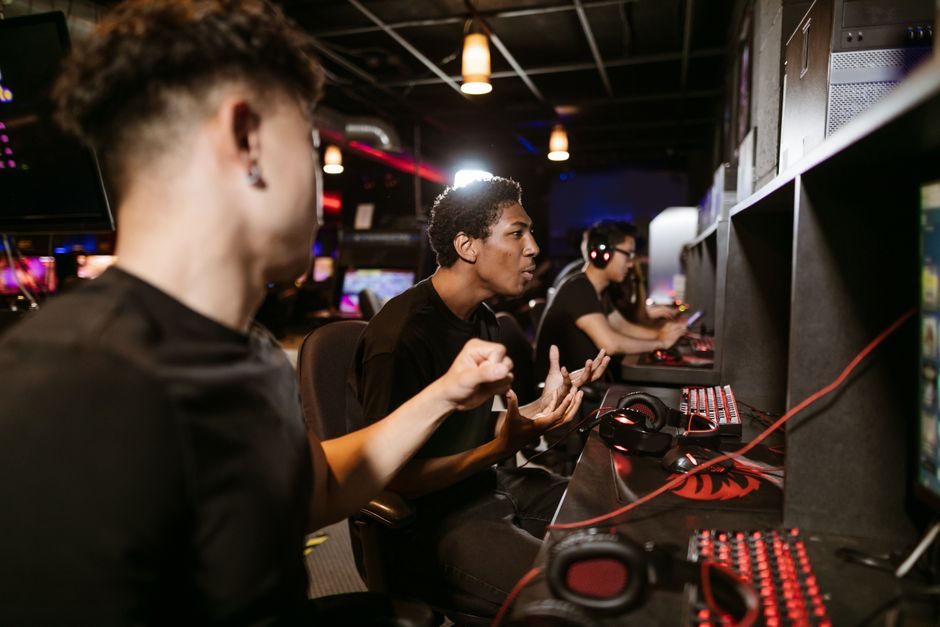
Look for a game's official community channels or established player groups before joining a random match server. Read the rules and recent discussions to see whether members explain strategies, welcome newcomers, and moderate harassment. A smaller group with clear expectations may be a better fit than a busy channel where useful conversation gets buried.
Use in-game privacy and communication settings to decide who can message, invite, or hear you. You can begin with voice chat disabled, use text or quick-chat commands, and open access later if the group feels comfortable. Muting disruptive players is a practical boundary, not a failure to participate.
Players curious about Leicester’s game-development scene can use Leicester Seo Services to understand how local businesses improve their visibility to nearby customers. That business perspective can make it easier to find studios and events through accurate local search results. Keep the focus on the game community itself when choosing where to meet players or follow announcements.
- Read community rules before joining.
- Check recent posts for tone and moderation.
- Set messaging and voice privacy deliberately.
- Mute or report disruptive behavior.
Keep Multiplayer Fair
Review a game's matchmaking options before selecting a mode. Ranked queues may emphasize competition, while casual modes can offer room to learn maps, roles, and mechanics without treating every result as a test. If a mode has a tutorial or practice range, use it to understand the basics before joining teammates.
Protect your account with a unique password and any security options the platform provides. Do not share login details with teammates, and be cautious of messages asking you to follow unfamiliar links or download unofficial files. If an offer or request arrives during a match, verify it through the platform's own interface before responding.
Treat other players as people, even when a round goes badly. Avoid sharing personal details in public chat, and use reporting tools for threats, cheating, or repeated abuse rather than escalating an argument. Taking a short pause after a frustrating match can help you return with better judgment and avoid turning one bad game into a poor session.
Avoid Common PC Game Buying Pitfalls
Check the Full Listing
Read the store page beyond its title and screenshots before buying. Confirm the supported operating system, minimum requirements, language options, and whether the listing describes a full game, early access, or additional content. User reviews can reveal recurring technical problems, but compare recent reports with the developer's update notes rather than relying on one comment.
- Open the full product listing.
- Compare the requirements with your PC.
- Confirm the edition and included content.
- Check the store's refund policy before buying.
For readers comparing how studios present games and services online, Local Seo Services explains ways businesses can keep location information consistent. That can be a useful lens when checking whether a studio's official pages and store details identify the same developer and support channels. For the purchase itself, rely on the storefront's current product description and policies.
Check whether downloadable content, a season pass, or an in-game currency is optional before placing an order. A bundle may include items you already own, while a base edition may not contain an expansion shown in promotional artwork. Read the edition comparison carefully and confirm the selected version in your cart before completing payment.
- Confirm system requirements and operating system.
- Check edition contents and included add-ons.
- Read recent reviews alongside update notes.
- Review refund terms before checkout.
Avoid Risky Shortcuts
Be wary of unusually cheap keys sold through sites you do not recognize. A low price can come with uncertain sourcing, limited support, or activation problems, and a key may not work in your region. Check whether the seller is authorized and whether the game can be activated on the platform you intend to use.
Do not disable security software just because an unfamiliar installer requests it. Official launchers and game files should come from the store or publisher's verified channels, not a link in a chat or an unsolicited email. If a download looks suspicious, stop and confirm the source before running it on your PC.
A refund window is useful, but it is not a substitute for checking a game's fit before purchase. Read the current refund rules because eligibility can depend on the store, playtime, and purchase circumstances. When uncertain, add the game to a wishlist, watch for a demo, or wait until you can verify performance and content.
Build a PC Gaming Routine That Works
Keep Games Organized
Install games on a drive with enough free space for the game and its updates. If your computer has several drives, choose one with suitable capacity and performance, then keep the library organized through the launcher's folders or labels. Removing games you no longer play can free room, but check for local saves before deleting files manually.
Turn on cloud saves when available, but do not assume they replace every backup. Check that a save has synchronized before switching devices or reinstalling a game, especially after playing offline. For a title with valuable local progress, find its save location through official support information and make a separate copy before major system changes.
Choose update settings that suit your connection and play schedule. Automatic updates can keep multiplayer games ready, while manual updates may be better if downloads interrupt work or compete with limited bandwidth. Before a planned session, open the launcher and check for pending patches so an update does not consume the time you set aside to play.
- Keep enough drive space for updates.
- Confirm cloud saves have synchronized.
- Back up important local saves.
- Schedule downloads around your connection.
Make Time for What You Enjoy
Keep your active library small enough that you can remember what you want to play next. A short wishlist or launcher collection can separate games you are currently playing from titles you may revisit later. This reduces the time spent browsing a large library when you only have a brief window to play.
Choose a session goal that fits the time you have, such as finishing a quest, completing a few rounds, or testing one new setting. For games without clear stopping points, check for a safe save location before starting. A defined endpoint makes it easier to stop without losing progress or feeling pulled into another match.
Review your routine occasionally and remove steps that create needless friction. You might keep a favorite game's shortcut accessible, silence nonessential notifications, or schedule large downloads when you are away from the PC. The aim is not to turn play into a chore; it is to make starting, saving, and returning straightforward.
Frequently asked questions
Should I buy a game before checking whether it runs well?Check the game's system requirements and recent player reports before buying, especially if your PC is near the listed minimum. Requirements provide a useful starting point, but they do not guarantee identical performance on every system. If a demo is available, test it on your own hardware. Also check the store's refund policy so you understand your options if the game has serious technical problems.
Do PC games work with a controller?Many PC games support controllers, but support and available features vary by title. Look for controller information on the store page or in the game's settings, and check whether prompts can switch between keyboard and controller. If you already own a controller, connect it and test the layout in a low-pressure area before relying on it for a difficult mission or competitive match.
What should I do if a game will not launch?First restart the game and launcher, then check for a pending game or system update. Confirm that your PC meets the requirements and that security software has not quarantined a legitimate game file. Use the store's file-verification option if available, and consult the publisher's support guidance before making advanced changes. Avoid downloading replacement files from unofficial sites.
How can I tell whether an online game is right for me?Check its modes, communication tools, and community rules before committing time or money. Reviews and gameplay videos can show the pace and style, while a free trial or demo lets you test the controls yourself. Consider whether the game supports solo play, friends-only sessions, or casual matchmaking if you prefer not to join highly competitive public matches.
A Better Way to Start Playing
A good PC gaming experience comes from a few practical checks: choose games that fit your hardware, compare store listings carefully, and adjust settings around comfort and performance. Secure your accounts, treat communities thoughtfully, and keep saves and updates under control. These habits make it easier to spend your time playing rather than troubleshooting avoidable problems.
For your next game, start by checking its requirements, edition details, and recent player feedback, then decide where and how you want to play. Once it is installed, test graphics and controls in a safe opening area before settling into a long session. Keep what works, change one thing at a time, and build a setup that suits your own play.
Add PC Game News Reviews Headlines Updates as a preferred source on Google


